Woodworking · for woodworkers cutting parts from plywood and sheet stock

SawNestCut list optimizer for sheet goods

SawNest is a cut list optimizer for woodworkers who break down plywood, MDF, and other sheet goods on a table saw or panel saw. You enter the parts you need with their dimensions, pick a stock sheet size, and tap Optimize. The app lays every part out on the sheets using straight, edge-to-edge guillotine cuts you can actually make, subtracts the blade kerf from each cut, and reports yield, sheet count, and leftover area. The pieces left over can be saved as offcuts, and the next project pulls from those before opening a new sheet.

  • Free
  • No ads
  • No account
  • Works offline
  • 45 languages
  • Home Screen widget
Get it onGoogle Play

Three moments

01

Enter the parts, tap once

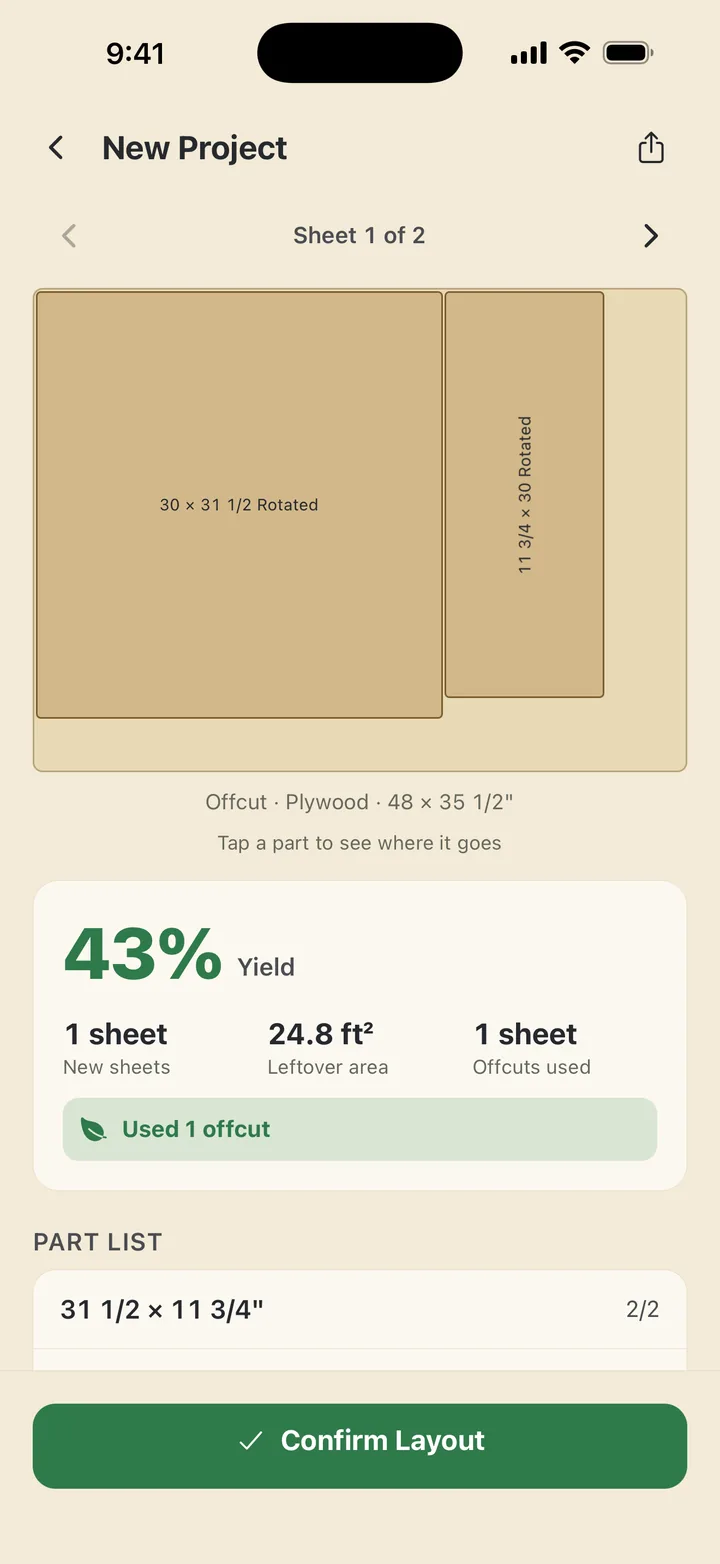
A project is a list of parts: width, length, quantity, and an optional name. Inches with 1/16 fractions or millimeters, whichever you work in. Tap Optimize and the layout draws on the sheet in a few seconds, with each part labeled where it sits.

02

Read the cut sheet

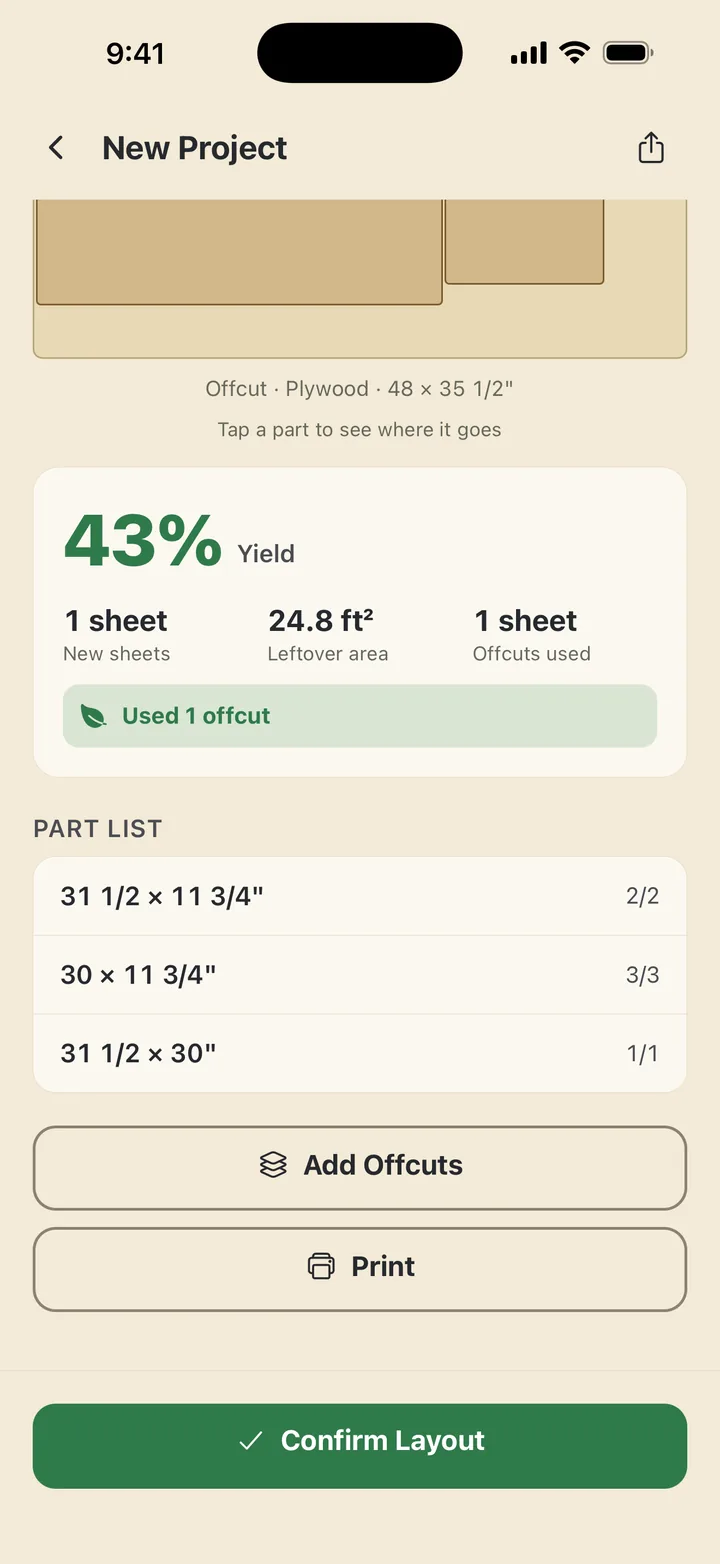
The result screen shows every sheet in the job with parts placed and cut lines drawn. Yield as a percentage, the number of sheets used, and the leftover area sit beside the drawing. Tap any part to highlight where it landed. Export the whole thing to PDF, print it, and pin it above the bench.

03

Offcuts go first, new sheets last

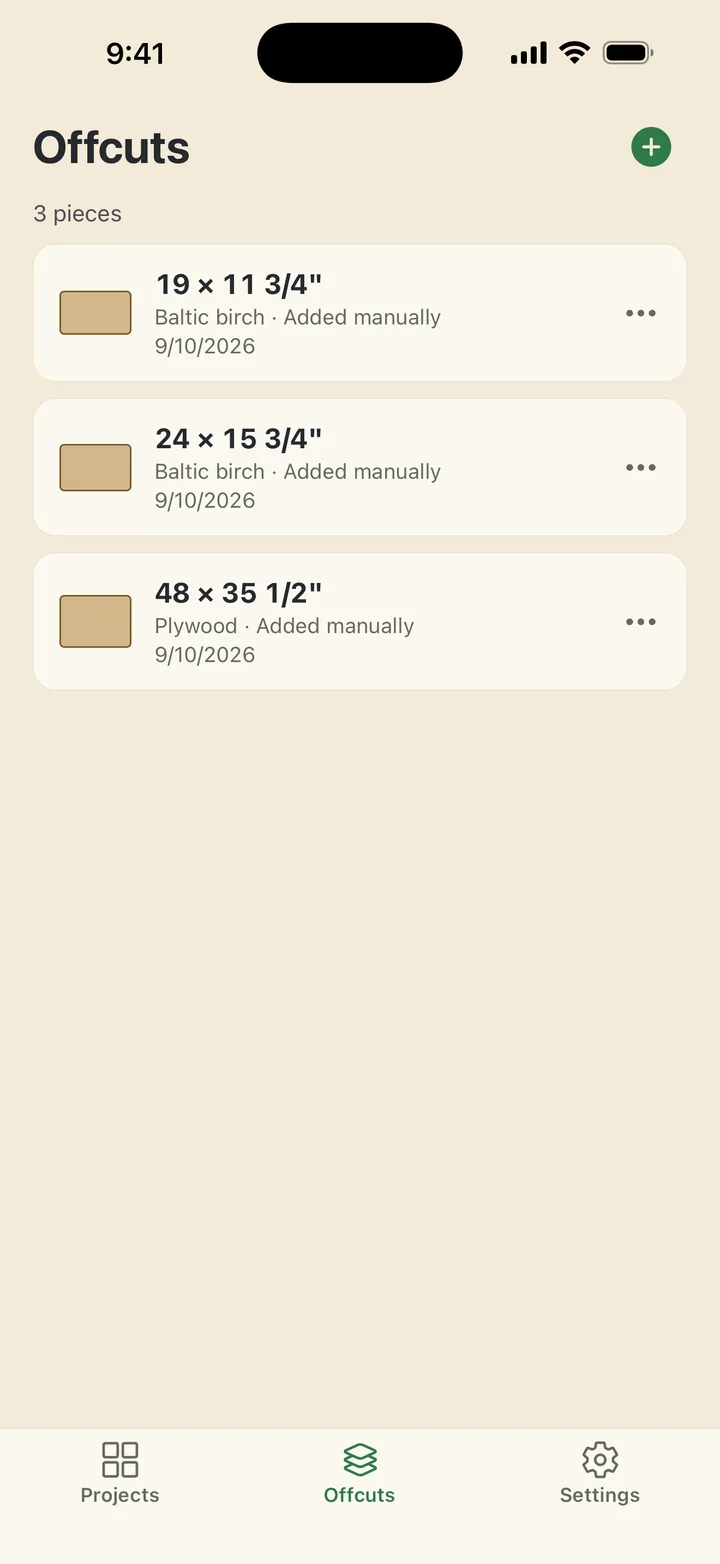
After a job, add the usable leftovers to your offcut inventory with their real dimensions. On the next project, SawNest tries those pieces before it opens a fresh sheet. An offcut only leaves the inventory when you confirm a layout, and it comes straight back if you undo.

Cuts a saw can make

Optimizers that pack parts like a jigsaw look efficient on screen and are impossible to cut on a table saw. SawNest only produces guillotine layouts: each cut runs from one edge of the sheet to the other, and every subsequent cut is made on one of the resulting pieces. That is how a panel saw or a track saw actually works, so the sheet on the screen is the sheet you can cut.

Blade kerf is subtracted from every cut, using the thickness you set. Parts where grain direction matters can have rotation locked so they are never turned sideways to save material. Stock sizes come from presets such as 48x96, 1220x2440, 910x1820, and 1525x1525, or you enter your own. Tell it how many sheets you have on hand, or let it use as many as the job needs.

A project from list to cut sheet

  1. Make a project. Name it, choose the stock size and how many sheets you have, and set the kerf for your blade.
  2. Add parts. Each part takes a width, a length, a quantity, and a grain lock if it needs one. Fractions like 23 5/8 go in as typed.
  3. Optimize. The layout appears with yield, sheet count, and leftover area. Parts without a grain lock can be turned 90 degrees to fit; locked parts keep their orientation.
  4. Confirm and keep the leftovers. Confirming a layout consumes the offcuts it used and offers the new leftovers for the inventory. Undo reverses both.

Inches and millimeters without conversion mistakes

The display unit is a setting. Switching it changes how dimensions are shown and never rewrites the numbers you already entered, so a 3/4 inch part does not quietly become 19.05 mm and back to 0.7500. Inch entry accepts fractions down to 1/16, which is what a tape measure reads.

Works in a shop with no signal

The packing runs on the phone. There is no account, no server, and no analytics, and the app makes no network requests. Projects and the offcut inventory are stored on the device; a backup file can be exported and imported whenever you want. A Home Screen widget shows how many offcuts you have on hand and your latest yield.

Layouts are a planning tool for before you cut. Always double-check dimensions in the shop.

Frequently asked questions

Does it handle solid lumber or only sheet goods?

It is built for sheet goods: plywood, MDF, particleboard, melamine, and similar panels. Linear stock like boards is not the layout it produces.

Can I stop a part from being rotated?

Yes. Each part has a grain lock. Locked parts keep their orientation on the sheet even if rotating would improve yield.

Can I limit how many sheets it uses?

Yes. Set how many sheets you have on hand for the project, or leave it open and let SawNest use as many as the job needs.

Is the offcut inventory shared between projects?

Yes. Offcuts are a single inventory. Any project can use them, and they are consumed only when you confirm a layout.

Can I print the cut sheet?

Yes. The layout exports to PDF and can be printed or shared from the phone.

Is it free?

Yes. No ads, no in-app purchases, and no account.

Get SawNest

Pick the channel you use.

Get it onGoogle Play