The freezer is a storeroom you cannot see into
A fridge shows you most of what is inside the moment you open it. A freezer does not. Bags frost over, drawers fill from the back, and the chicken thighs bought in spring end up under a tub of ice cream. Most households track this with a sheet of paper taped to the door, a note on the phone, or memory, and then rediscover the forgotten packages on defrosting day.
A dated list helps, but it answers only half the question. It can tell you the pork shoulder is six months old; it cannot tell you which drawer it is in. FreezeKeep keeps both facts together for every item: when it went in, and where it went.
A map you draw once
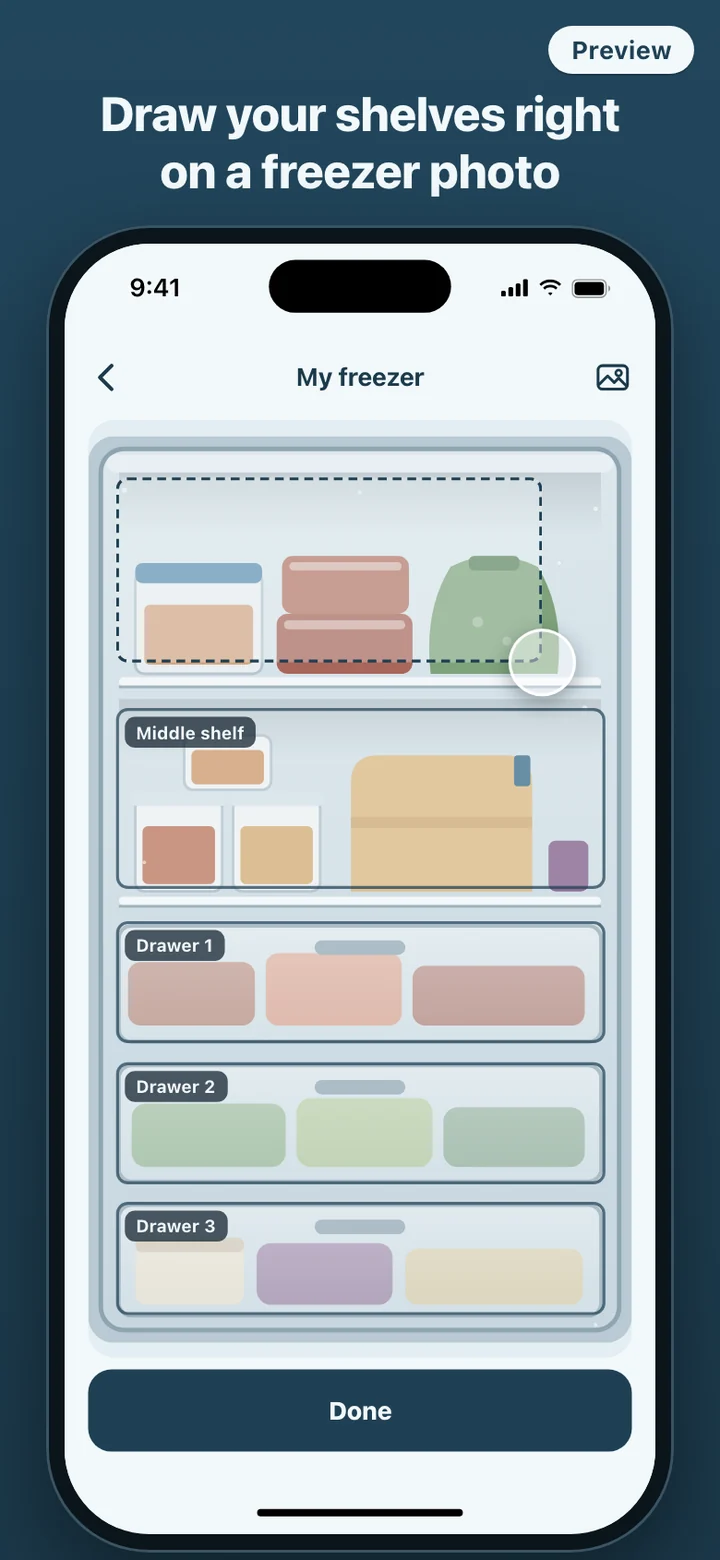
The map starts as an ordinary photo of the open freezer, taken with the camera or chosen from your library. You draw a rectangle over each part you want to track. While you drag, the corner snaps to the edges of boxes you have already drawn and to the middle lines of the photo, so rows line up without fiddling. Select a box to rename it, move it, resize it from its corner handle, or delete it. Deleting a box never deletes food: anything that was in it moves to Unplaced.
Freezers get rearranged. When the photo no longer matches the freezer, take a new one. The boxes and everything logged in them stay put and sit on top of the new picture, because their positions are stored relative to the photo rather than to screen pixels; only a box that ended up in the wrong spot needs nudging. A second freezer, such as a chest freezer in the garage, gets its own photo and map, and you switch between them at the top of the screen.
The first time you open the app, a demo freezer with five boxes and seven items shows a finished map, badges and all, before you photograph your own. It carries a Demo label, and its items can be eaten or discarded like any others.
How it fits into a week
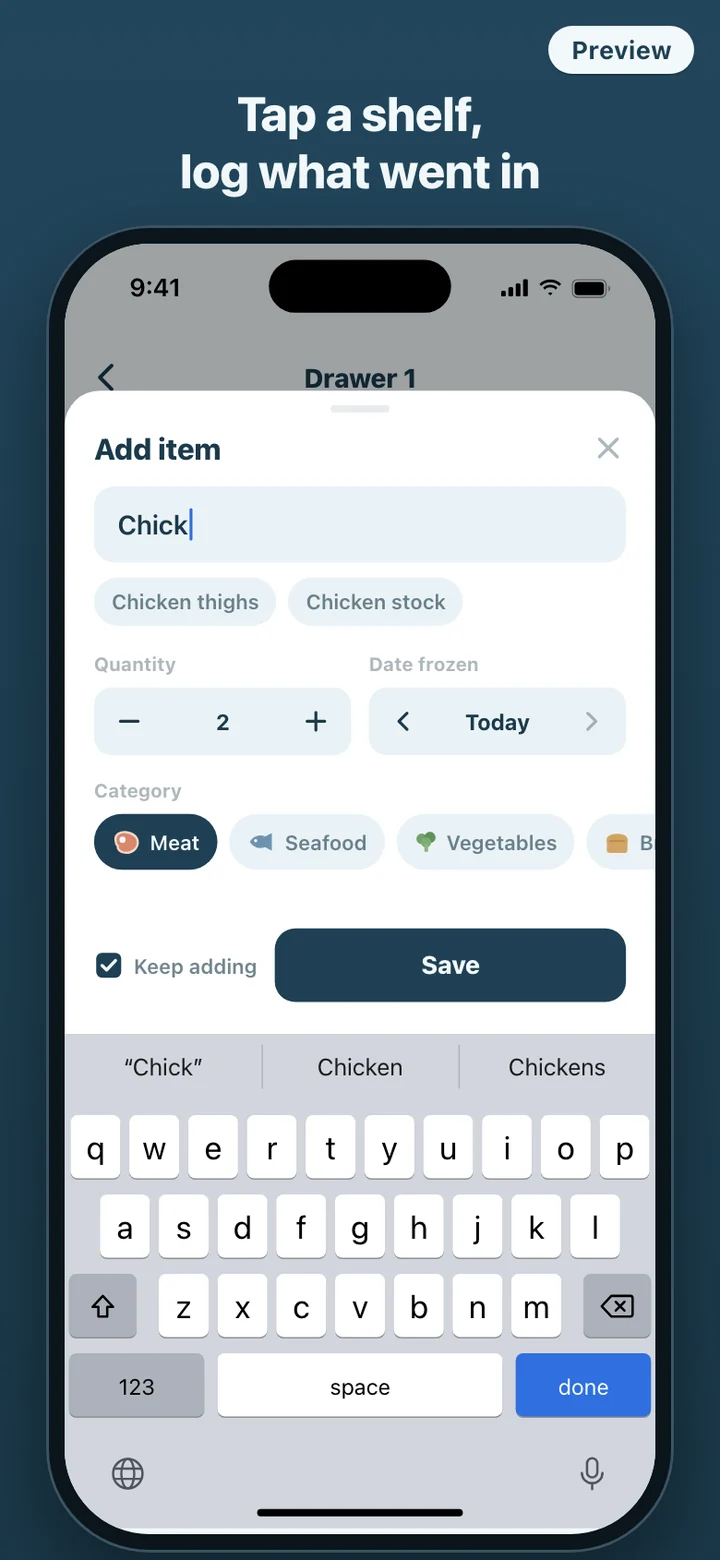
On shopping day, tap the drawer you are filling and add things as they go in. Names you have used before appear as suggestions under the name field, so a repeat item is one tap on the suggestion and one on Save. Batch cooks can switch on Keep adding and log six containers of soup into the same shelf without the sheet closing.
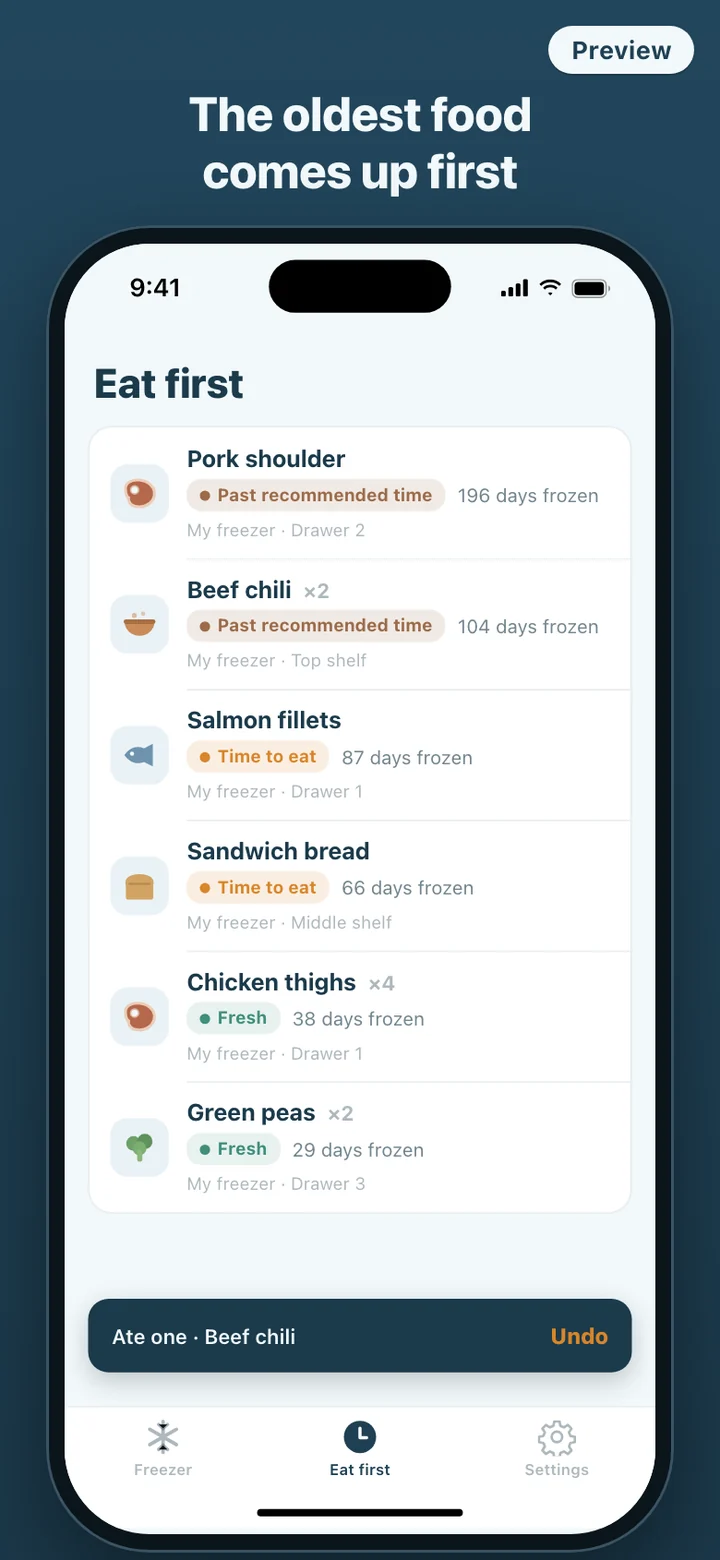
On a weeknight, open Eat first or glance at the map. Every box shows how many items it holds, and the count badge takes the color of the most overdue item inside, so the drawer that needs attention stands out. Search by name, tap the result, and the app switches to the right freezer and makes that box glow on the map. When something comes out, swipe Ate it: the count drops by one, and the item leaves the list when the last portion is gone.
Reminders are optional and stay off until you turn them on; the notification permission is requested only at that moment. Choose one, two or three times a week and an hour of the day, and each reminder names the three items that have been frozen longest, with the number of days for each. There is never one alert per item. At most eight reminders are scheduled ahead, and they are rebuilt from your current freezer each time you open the app.
Quality, not safety
FreezeKeep orders food by days in the freezer and labels it by quality only. The USDA Food Safety and Inspection Service says food stored constantly at 0 °F will always be safe and that recommended freezer storage times are for quality only. The app follows that line. Each food category, from meat and seafood to vegetables, bread and noodles, and cooked meals, carries one recommended freezer time set from public freezer storage charts. An item turns to Time to eat in roughly the last third of that window and to Past recommended time after it. Items without a category use the Other window. Nothing in the app says food has spoiled or must be thrown out; Discard is simply a way to remove an entry.
FreezeKeep is an inventory and rotation tool. Its badges come from the date you entered and a general quality window for the food category. They are not a check of the food itself and cannot tell you whether a particular item is safe to eat. For food safety questions, follow USDA guidance.
What it deliberately leaves out
FreezeKeep only does the freezer. There is no fridge or pantry tab, no barcode scanning, no recipe suggestions, no shopping list and no statistics screen. It does not try to identify shelves or food in your photo; the map is whatever you drew, and the names are whatever you typed or picked.
There is no account, no sign-in and no sync. Freezer photos are copied into the app's own storage on your phone, the app makes no network requests, and Delete all data in Settings removes the freezers, items, photos and scheduled reminders in one step and returns the app to its first-run state.