Two people, one phone
The person who searches for a big keyboard is rarely the person who will type on it. More often it is a son or daughter who has watched a parent hit the wrong small key three times, give up on a reply and phone instead. GrandKeys is built around that split. The setup is written for the helper, and the keyboard is written for the person who keeps the phone.
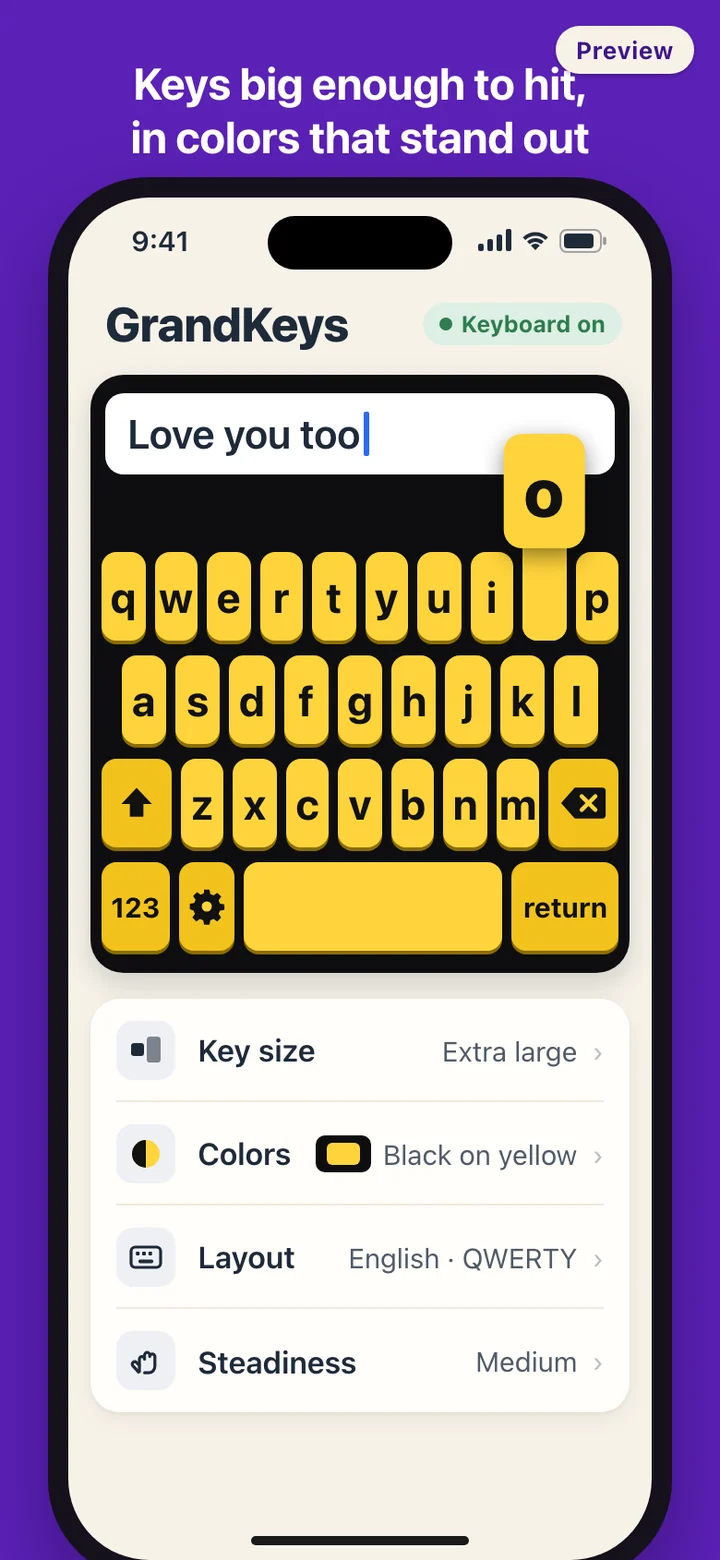
Phones already offer ways to enlarge text and zoom the screen, and those are worth turning on. GrandKeys works on the keyboard itself: how big the keys are, how strongly they contrast with their letters, and what happens when a touch slides or repeats.
The gift setup, step by step
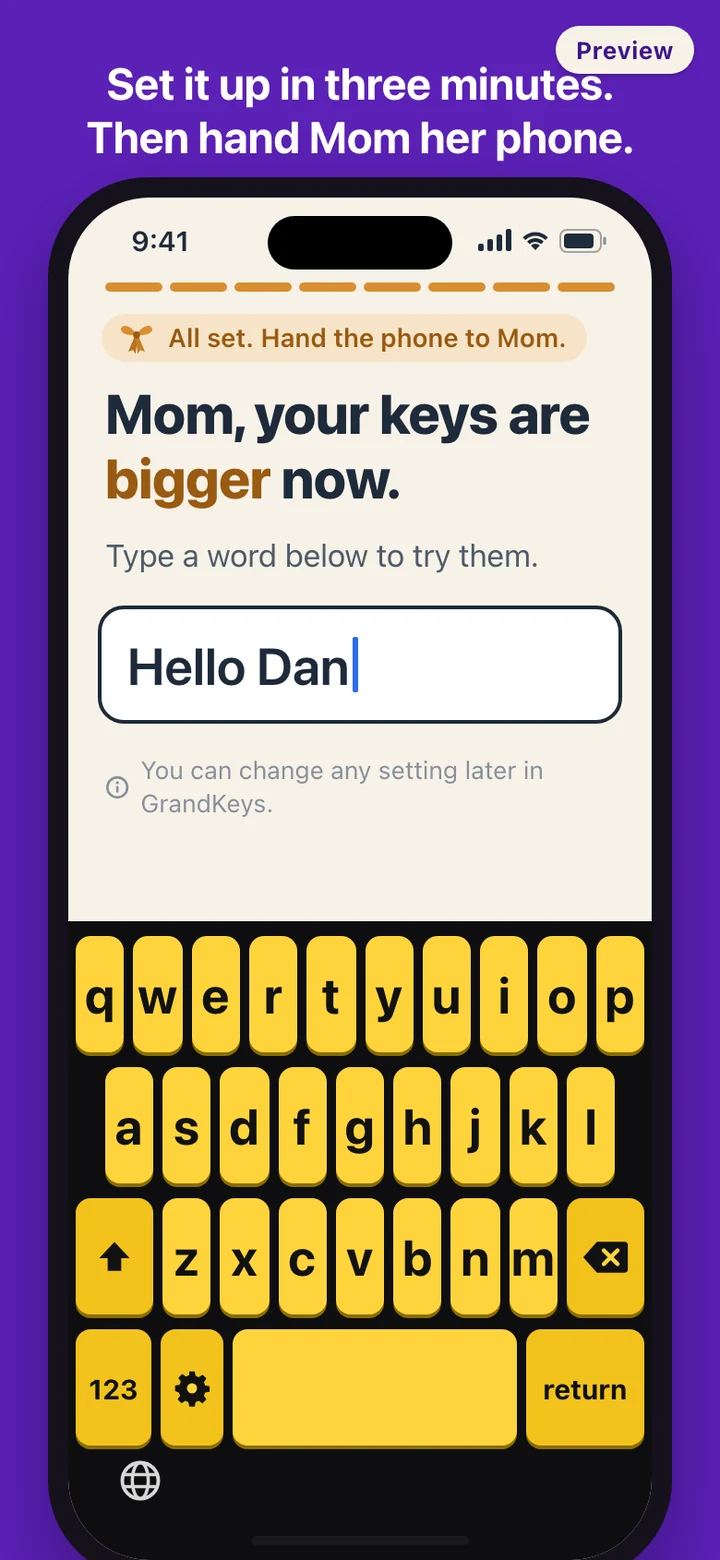
Open the app and a preview keyboard is already on screen, so you can type on it before anything is switched on. Pick the gift setup and the steps run in order, one task per screen, with a progress marker and a back button on each:
- A short note for you: do this on your parent's phone, and it takes about three minutes.
- What to call them, such as Mom, Dad or a first name. You can skip it.
- Key size, from three oversized steps. The preview changes as you tap.
- Colors, from a few high-contrast pairs.
- Steadiness: Off, Light, Medium or Strong, asked as one plain question, "Do your hands shake a little?" Medium is the default.
- Switching the keyboard on. iPhone only allows this in the Settings app, so step cards show each screen to look for.
- The handover screen, in large type for your parent, with their name and a box for the first word.
Each step is saved the moment it is made, so a phone call or a locked screen halfway through does not send you back to the start. For someone setting up their own phone there is a second path with the same choices in larger type.
On the keyboard, every day
The layout is the one people already know: QWERTY with shift, delete, return, a numbers and symbols key, and the globe key for switching keyboards. Keys are taller and their letters bigger, but nothing is rearranged, because an unfamiliar layout is harder to use than a small one. A pressed key pops up a larger copy of its letter, the way the standard keyboard does.
A settings key inside the keyboard changes the key size and steps through the color pairs without leaving the message being written, so a small adjustment never needs a trip back to the app.
How the steadiness setting decides
Shaky hands make a few predictable kinds of mistake: a finger that lands on one key and slides onto the next, a brush too brief to be a real tap, and the same key hit twice in a fraction of a second. The steadiness setting looks only at where a touch starts and ends and how long it lasts. It settles a slide toward the key the touch was aimed at, ignores brushes, drops a too-quick repeat and holds steady when a finger wavers on the edge between two keys.
It never reads the words. There is no dictionary, no autocorrect, no word prediction and no learning from what is typed. When position and timing do not make the intended key clear, it keeps the key that was actually touched, because a keyboard that changes a correct letter does more harm than one that lets a wrong one through. Ordinary quick typing is meant to pass straight through, and no badge announces that a tap was adjusted.
What the keyboard can see, and where it goes
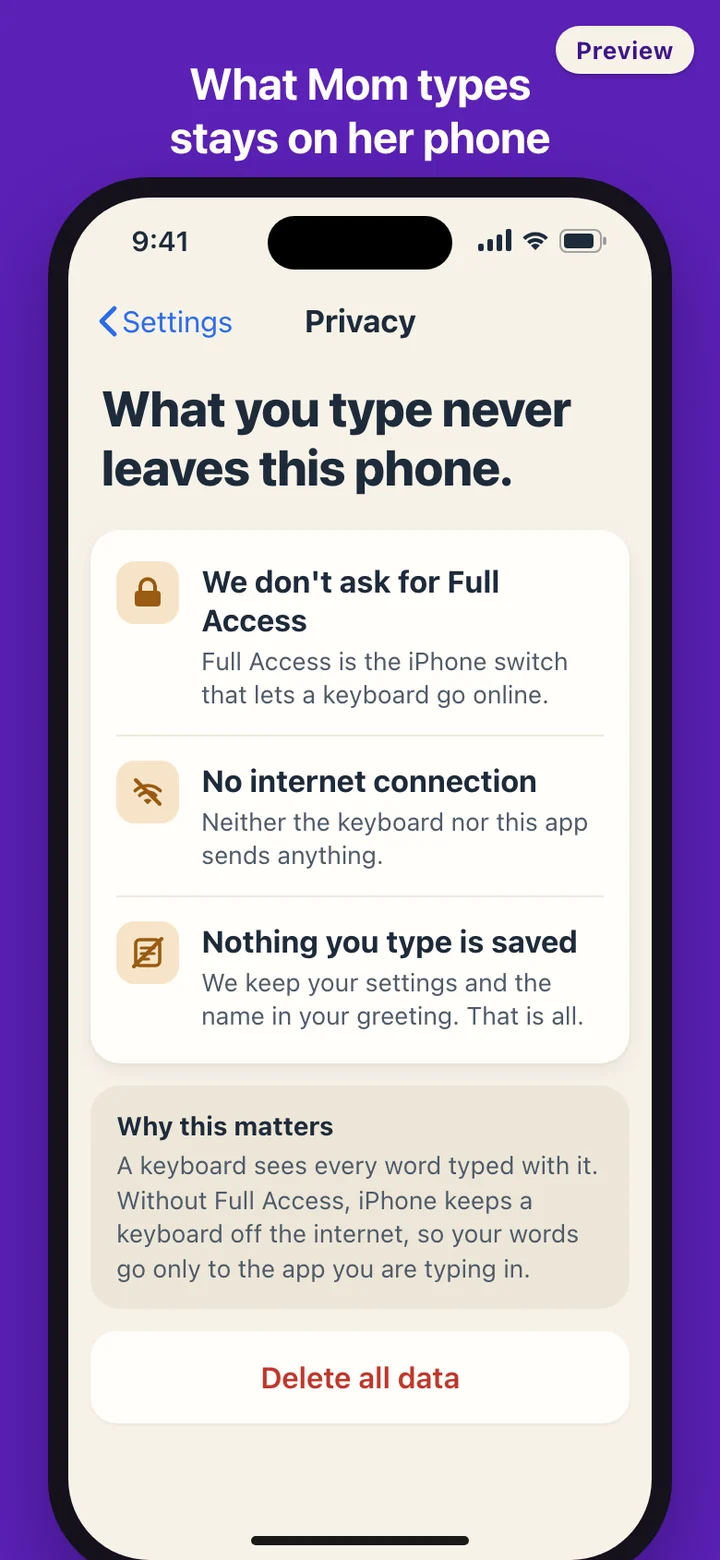
A keyboard sees everything typed through it, which is why its permissions matter more than most apps'. On iPhone, a keyboard only gets internet access, or the right to write into space shared with its app, if it asks for Full Access and the user turns that on. GrandKeys does not ask. Apple's developer documentation states that without Full Access, keystrokes go only to the app that is using the keyboard.
The GrandKeys app makes no network requests either. It stores the settings and the optional name, has no account, and no usage data leaves the phone. Delete all data in the app's settings wipes the app's copy and the keyboard's copy together and returns the app to its first screen.
One limit comes from iOS itself. In password fields and phone number pads, iPhone swaps in its own keyboard for every third-party keyboard, and GrandKeys returns when the next ordinary text field is tapped. That is a security rule, so your parent will still see the standard keyboard on password screens.
What GrandKeys leaves out
GrandKeys does not let you control a parent's phone from your own. The gift setup happens on their phone, in your hands, and afterwards the settings are theirs to change. There is no account to link, no cloud copy and no reminders. It does not fix spelling, suggest words or offer decorative themes; the colors are there for contrast, not for looks.
GrandKeys is a typing tool. It does not diagnose, treat or improve tremor, eyesight or any other condition.