Where, which ink, and when
A client sits down for a touch-up on a forearm piece you did last spring. Before you pick up the machine you need three answers: exactly where the work is, which inks went in, and how long ago the last session was. Paper cards and phone notes hold those answers somewhere, but rarely in one place and never in the shape of a body.
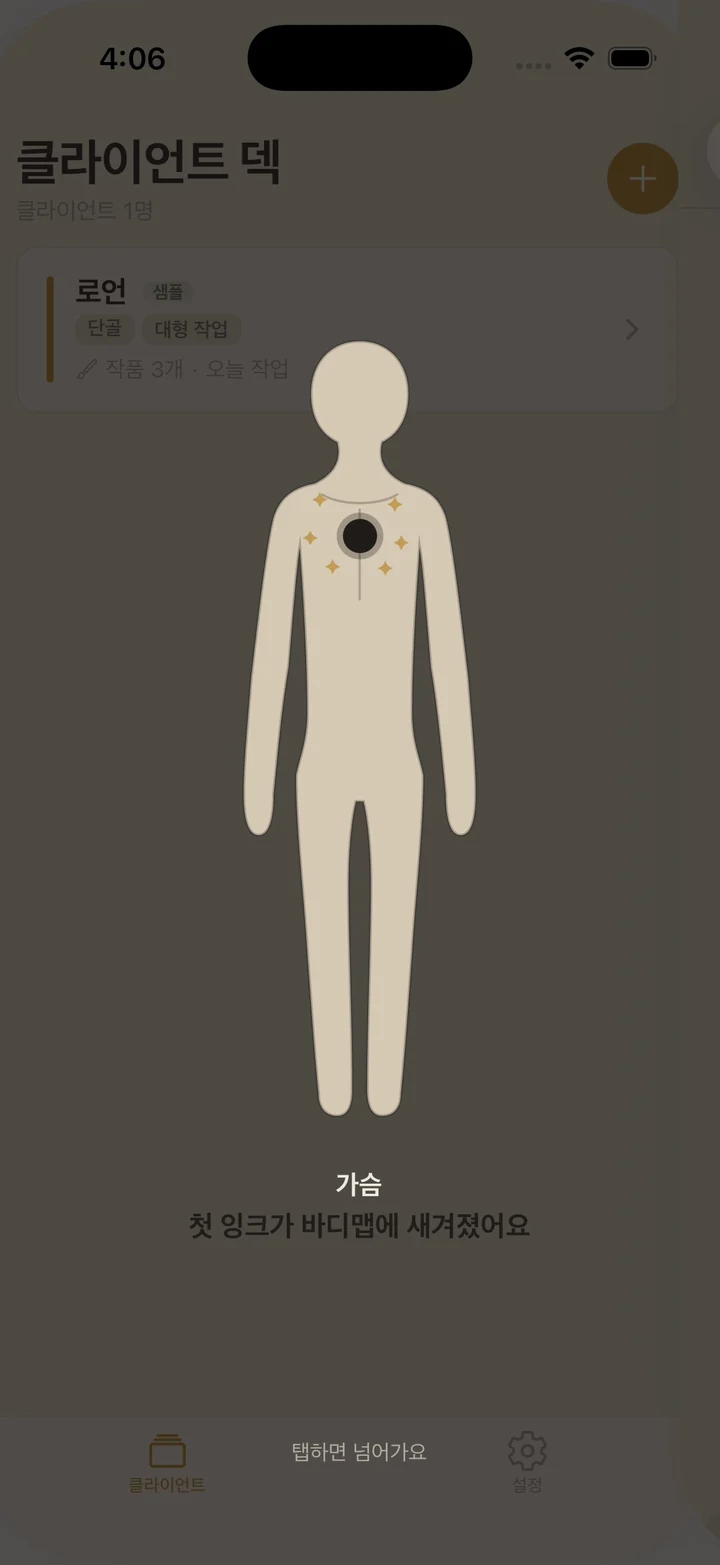
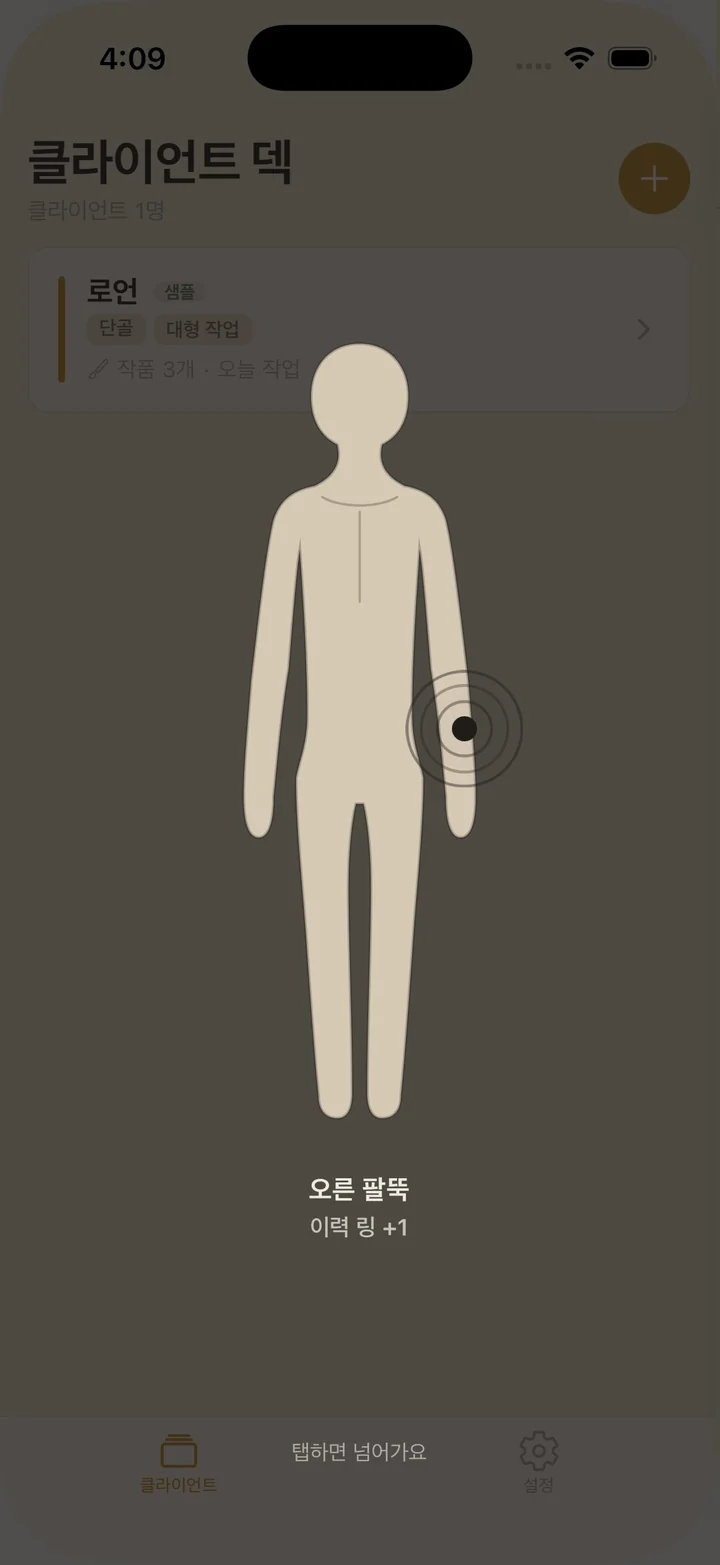
InkCarte puts a body map at the top of every client card. Each piece is a mark on that map, and each session on the piece is a ring around its mark. Below the map sits the list of pieces with region, style, size, touch-up count, and days since the last session, followed by a caution note and a contact note for that client. The caution note is where you keep what you want to see before the next session, such as how the skin reacted last time.
Recording a piece
- Open the client card and start a new piece.
- Tap the spot on the silhouette. Flip between front and back: the front covers the face, neck, chest, stomach, upper arms, forearms, hands, thighs, and shins; the back covers the nape, upper and lower back, shoulder blades, triceps, backs of the thighs, and calves, with left and right kept apart.
- Add the details you have: a title, a style picked from common choices like Traditional, Blackwork, or Fine Line (or your own word), and the size in centimeters.
- Log the first session: one line per ink with brand, color, and a short note, the time it took in minutes, photos from the camera or the photo library, and a memo. Common ink brands sit in a row you can tap, and each photo can be labeled stencil, fresh, or healed.
- Save. Only the spot is required, so a tap on the map and a save make a valid record when the next client is already waiting.
Touch-ups without retyping
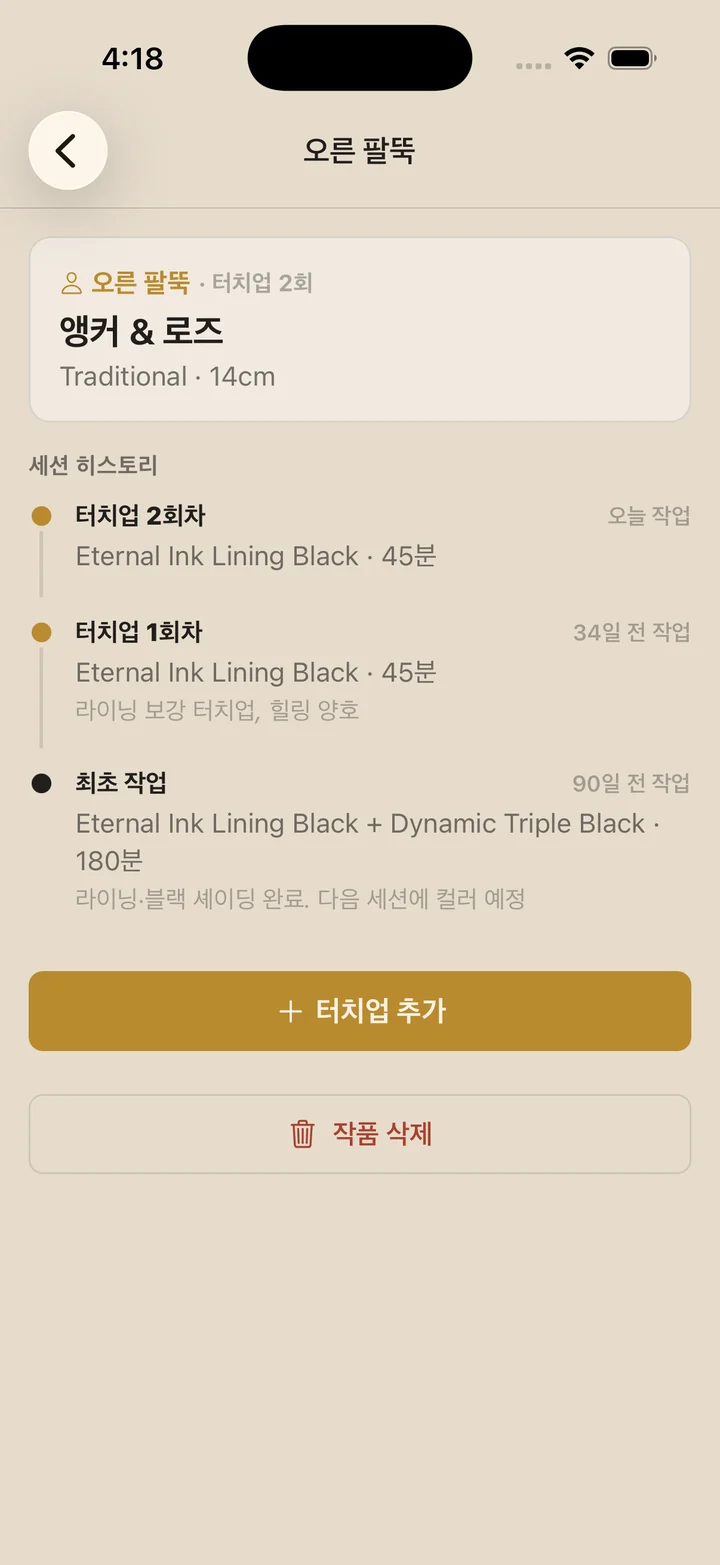
Adding a touch-up opens a session form already filled with the inks and duration from the previous session, with a line telling you so. Change what changed and save. The memo, photos, and date start fresh, because those belong to this session only.
Mistakes can be fixed. Tap any session in the history to correct it or delete it, edit a piece's title, style, or size, or remove a whole piece or client card after a confirmation. A saved piece keeps its spot, so if the spot itself is wrong, delete the piece and record it again.
Finding a client in the deck
The deck lists your clients with the most recent session first, and each card shows how many pieces that client has and how long ago you last worked on them. Search by name, or filter with the tags you set on each card: regular, walk-in, cover-up, large project, guest, and sensitive skin. Pick more than one tag and only clients carrying all of them stay on screen.
A sample client to start with
On first launch the deck already holds one sample client, a fictional person marked as a sample, with two pieces. One of them has had a touch-up, so its mark already wears two rings, and you can open everything to see how a finished card reads. A short intro card, which you can skip, explains that records stay on the phone. Delete the sample whenever you are ready to add your own clients.
On this phone, and nowhere else
InkCarte has no account, no server, and no analytics service. It makes no network requests, so it works the same in a basement studio or at a guest spot with no signal. Client names, notes, and photos live in the app's own storage on your phone.
Records leave the phone only when you send them. The full backup in Settings packs every client, piece, session, and photo into a single zip file and hands it to the share sheet, so you decide where it goes. Importing that file on another phone replaces whatever is there. Delete all data removes clients, pieces, sessions, and photos in one step and returns the app to its first-launch state.
InkCarte keeps records of the work. It does not book appointments, take payments, or send reminders.