Where photocard checklists usually live
Most collectors keep track with a mix of things: a printed lineup template with the owned cards crossed out, a list in a notes app, a spreadsheet tab for each comeback, and a camera roll full of binder pages. That holds up until there are five releases with three versions each, a fansign perk, and a wishlist that lives somewhere other than the collection.
Apps built around a shared catalog have the opposite problem. They are only as complete as the catalog, so a store-exclusive version, a season's greetings set, or the perk from last month's event may simply not be there yet. PocaBinder starts from the other end: an empty binder that you shape to exactly what you collect.
Build the binder once, in your own words
Add an artist by typing the name and choosing Group or Solo. For a group, type every member in one field, separated by commas; a solo artist becomes the single member automatically. Then add a release with a title, an optional date, a type (Album, Season's Greetings, Fansign perk, Bromide, Official MD, or Other), and its versions, again as one comma-separated line such as A ver, B ver, C ver.
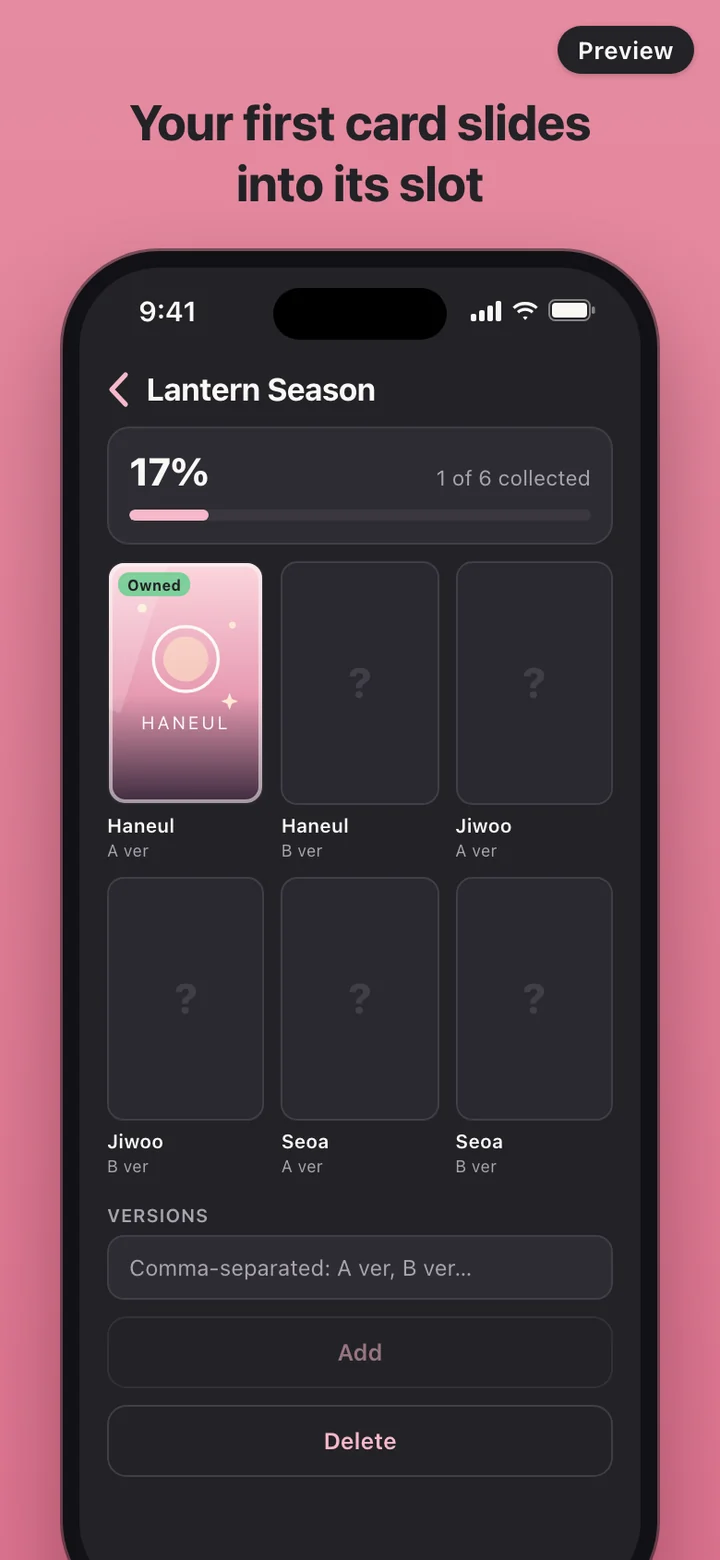
PocaBinder makes a card slot for every member and version, so three members and three versions give you a nine-slot grid. The next release opens with the type and versions you used last time already filled in. If another version turns up later, type it into the release and the grid grows; cards you already logged keep their place.
One card, start to finish
Tap an empty slot, marked with a question mark, and the card screen opens. Take a photo with the card-shaped guide on screen, or choose one from Photos. If you only shared selected photos with the app, a Manage selected photos button adds more to that selection. Pick a status: Owned, Wishlist, For trade, or Transferred. Add a card number and a memo about where the card came from or its condition if you want, choose a frame, and save.
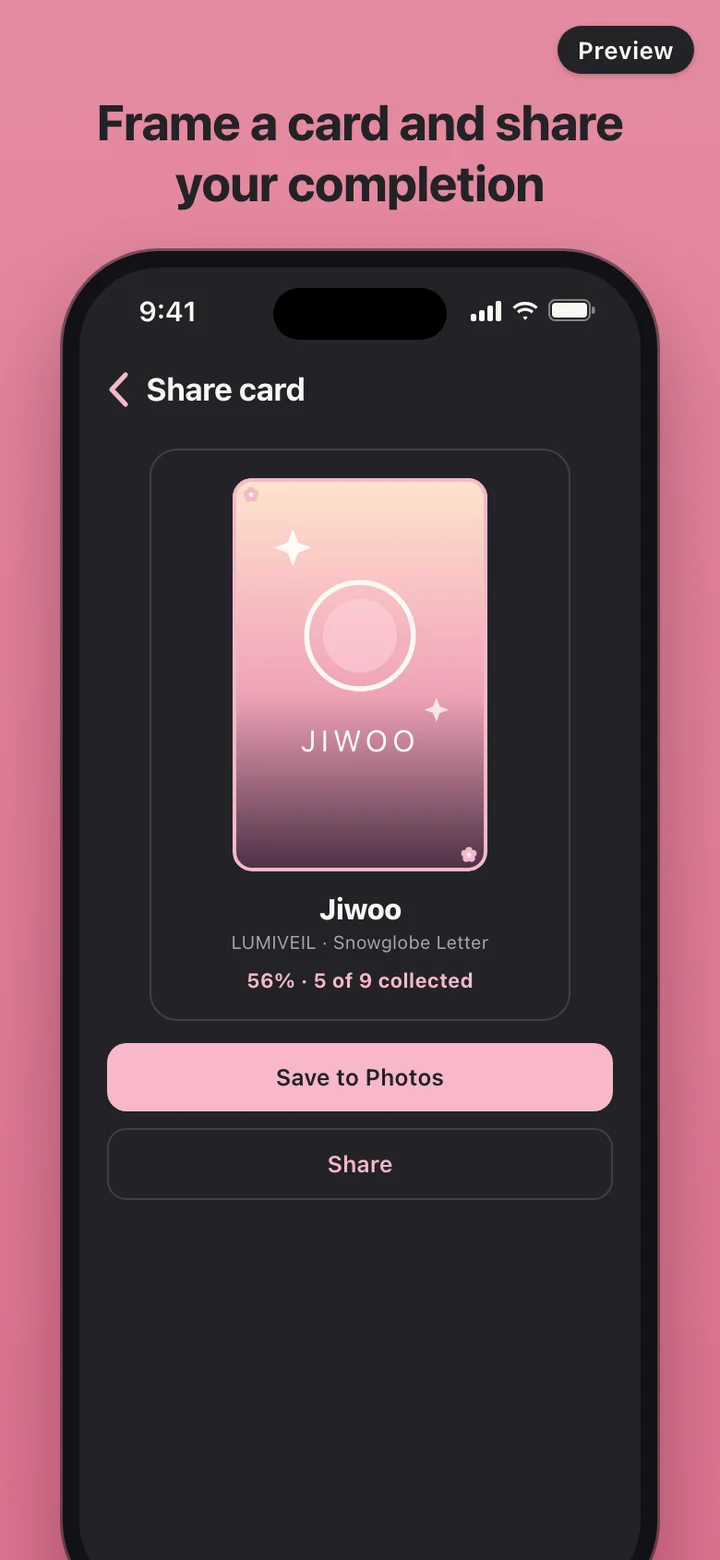
Completion counts Owned and For trade cards and leaves out Wishlist and Transferred, so a card you passed on drops out of the total without losing its record. The release grid, the artist page, and the binder home all show it the same two ways: a count such as 5 of 9 collected, and a percentage on a bar.
Wishlist, search, and stats
Mark a slot as Wishlist and it joins the others you are hunting in the Wishlist tab. When one finally arrives, tap Got it! under it and it moves to Owned; add the photo whenever you are ready.
On the binder home, search across artist, member, release, and version names, and narrow the grid with chips for release type and status. The Stats tab shows overall completion, completion for each artist, how many cards sit in each status, and a seven-day bar chart of the cards you added or updated.
Private by design
There is no account and nothing to sign in to. PocaBinder makes no network requests and carries no analytics SDK. Photos are copied into the app's own storage on your phone and the binder data sits next to them. The only images that leave are the share cards you choose to save or send.
The first time you open PocaBinder there is a sample binder for a made-up group, so you can tap around before adding anything of your own, and one button in Settings removes it. Settings also switches between the dark binder theme and a light pearl theme, and Delete all data wipes every artist, release, card, and photo from the app in one go.
What it deliberately leaves out
PocaBinder ships no artist database, no official images, and no logos. Every name in it is one you typed, and every picture is one you took or picked from your own photos. There is no marketplace, no price tracking, no trade matching, and no chat; For trade is a label for your own reference, not a listing. There is no feed and no cloud sync either, so the binder is kept on the phone it was made on.
PocaBinder is an independent app. It is not affiliated with any artist, entertainment agency, or official merchandise.